
Step 1
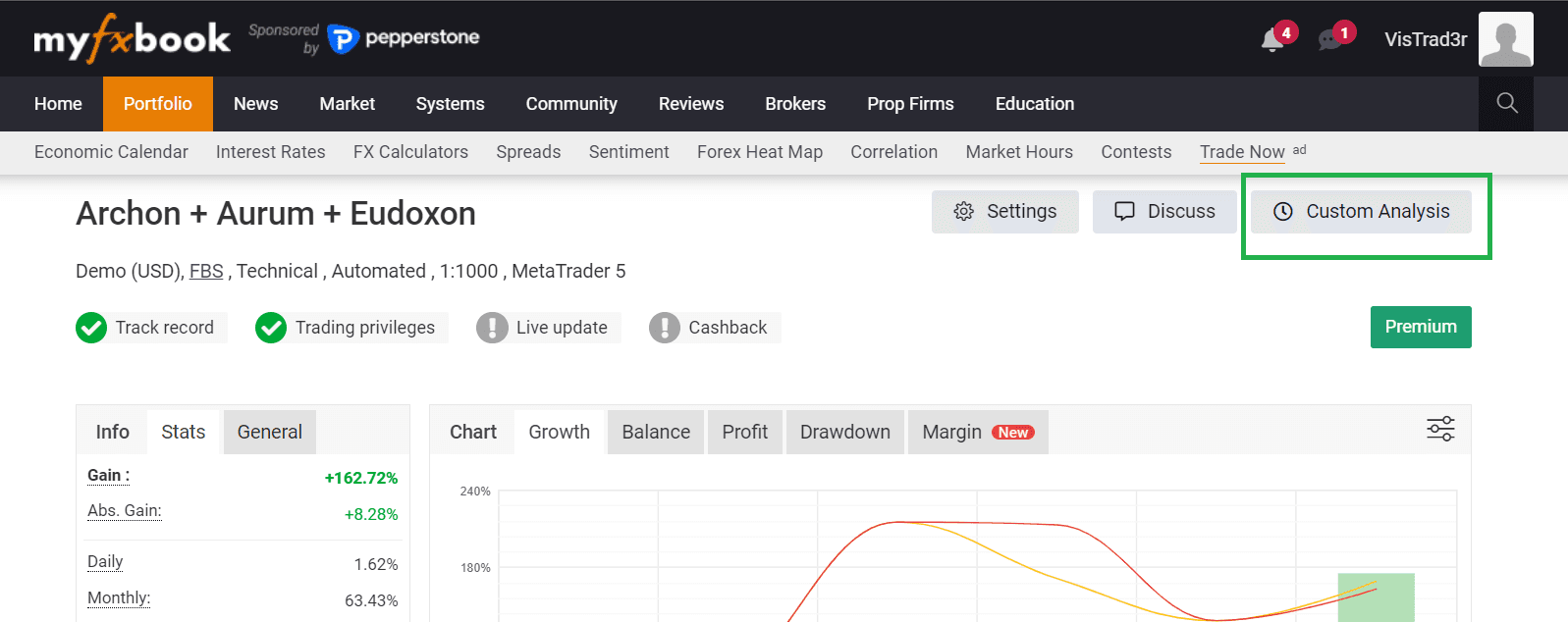
Open Custom Analysis on the account page
Go to the shared Myfxbook account page and click Custom Analysis in the top-right controls.
Myfxbook visual walkthrough
Follow your annotated steps below to isolate each EA inside Myfxbook Custom Analysis. This makes it easy to verify strategy-level behavior instead of viewing all trades blended together.
Step 1
Go to the shared Myfxbook account page and click Custom Analysis in the top-right controls.
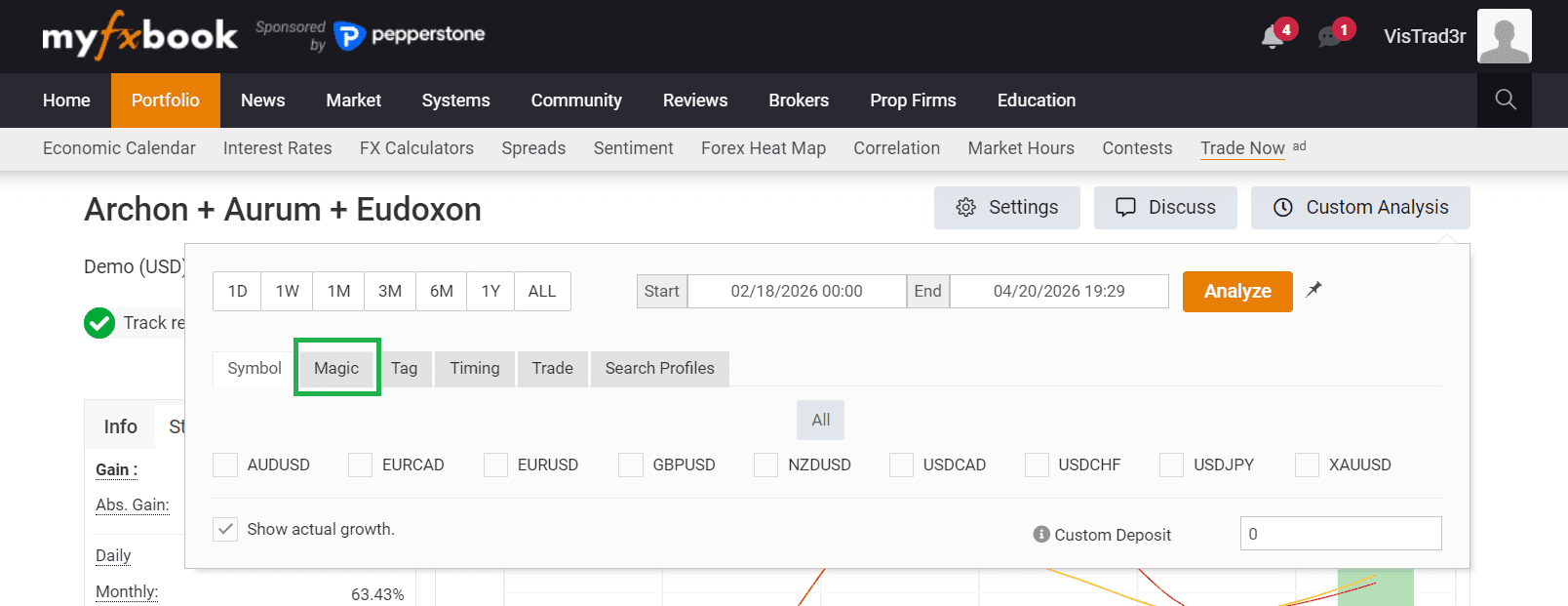
Step 2
Inside Custom Analysis, select the Magic tab to filter trades by EA magic grouping.
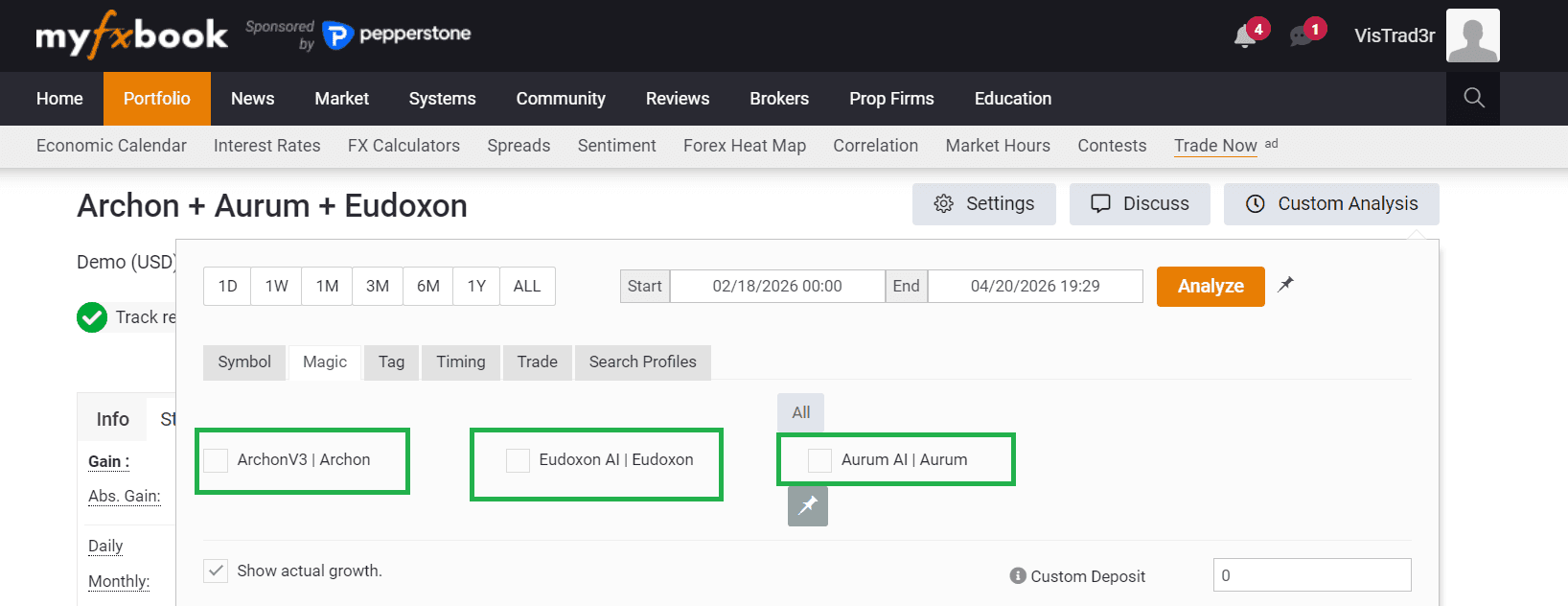
Step 3
Tick the relevant entry such as ArchonV3 | Archon, Eudoxon AI | Eudoxon, or Aurum AI | Aurum. Use one at a time for per-EA analysis, or multiple for combined comparison.
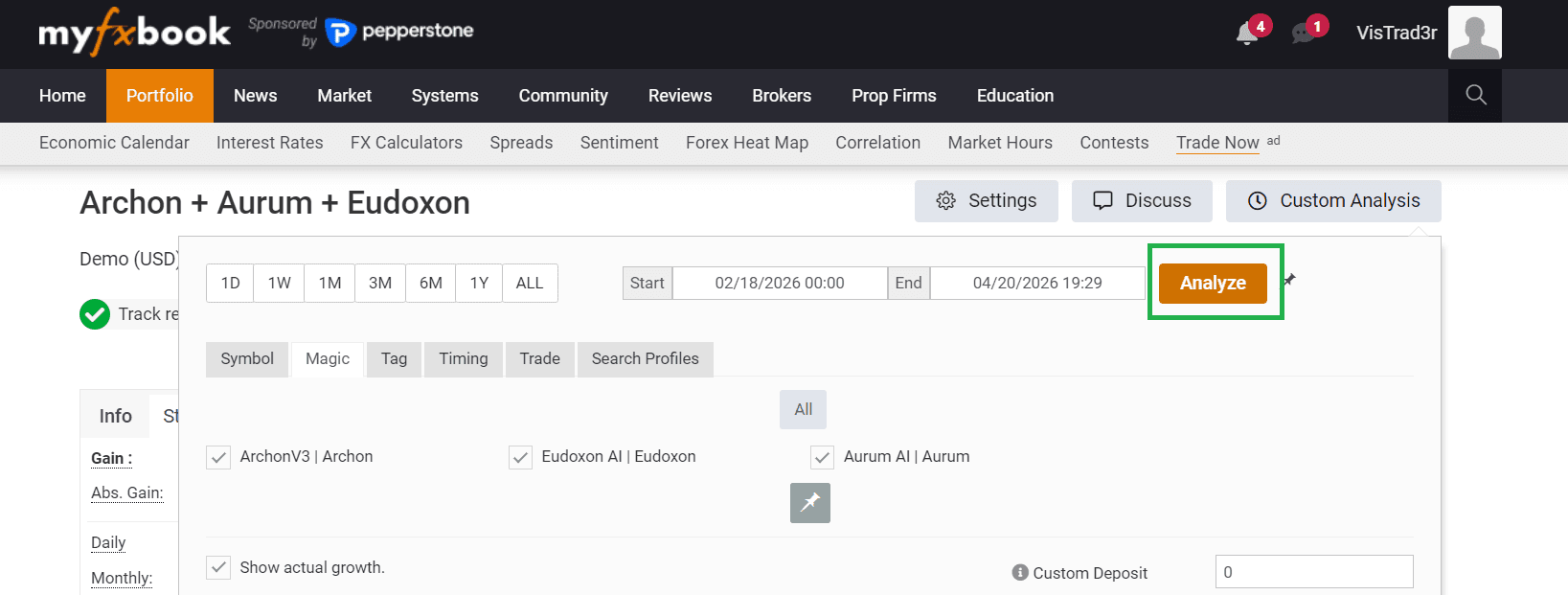
Step 4
Click Analyze to apply your selection and refresh performance metrics for the chosen EA filter.
Need the live page first? Open the tracked account directly on Myfxbook.